

Bidirection Omni Support
Start with a call. Show what needs fixing.
Help customers explain a problem in the way that works best: by talking, showing it on camera, or sharing a relevant file. Connect website conversations and phone support with a guided visual session.
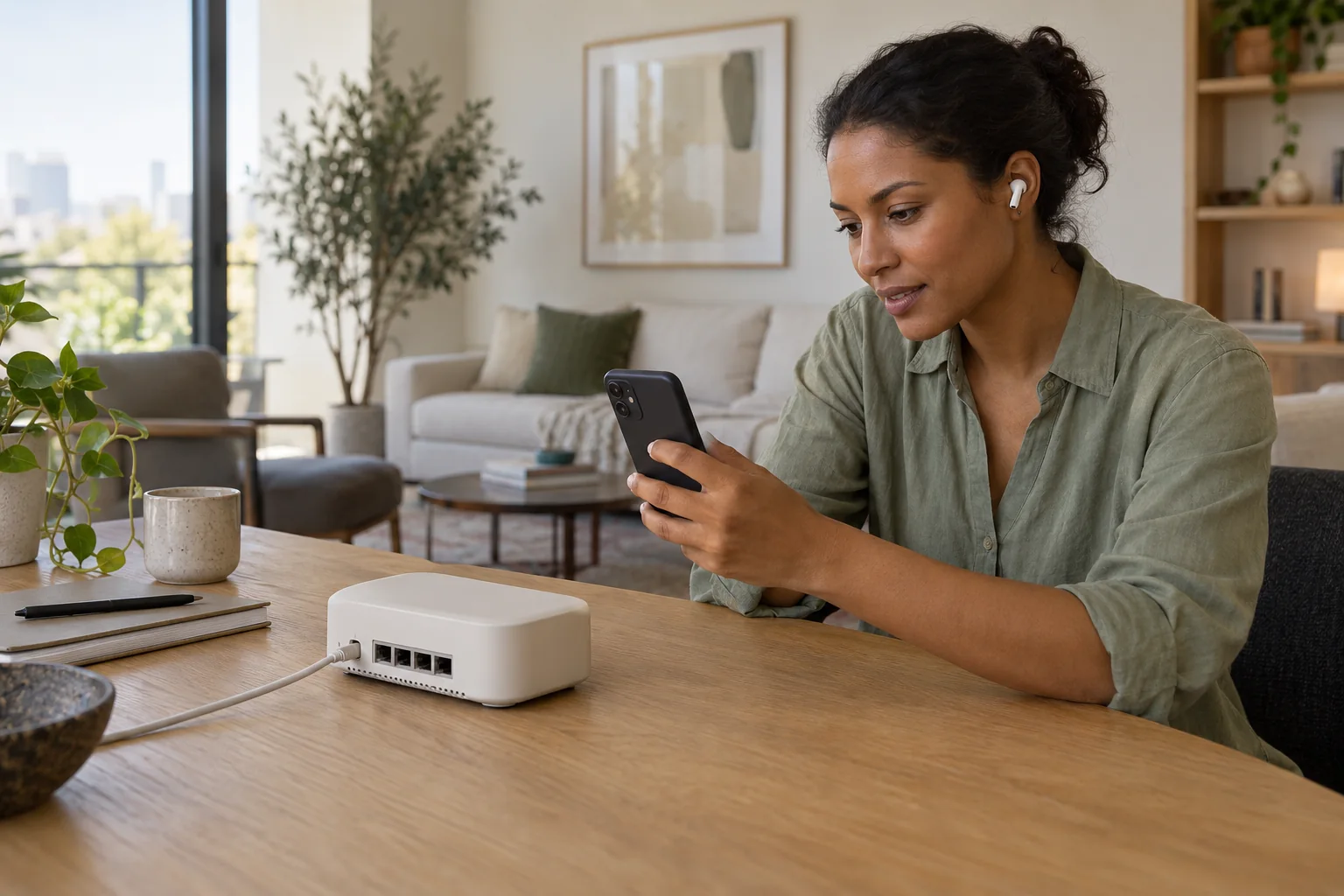
The camera stays off until the customer joins the session and chooses to share.
Two ways to begin.
Omni Support meets customers wherever the conversation starts.
Start on your website
A visitor opens a voice session right on the page they're on. Visual context — camera or a file — can join the same session when it would help.
Call your support line
A customer calls the business's connected number as usual. When seeing would help, the agent offers a companion web session — the phone call itself never exposes camera or screen.
From phone call to shared view, in four steps.
The companion session is a proposed browser-based flow — no app install, nothing shared without the customer's say-so.
- 1Start the callThe customer dials your connected support number and talks it through.
- 2Open the session linkA companion link opens in their browser — phone stays on the call.
- 3Choose what to shareCamera or a file, granted explicitly by the customer in the browser.
- 4Continue with guidanceThe agent talks and points with the shared context in view.
Three kinds of visual context.
Each is distinct, and each is the customer's choice.
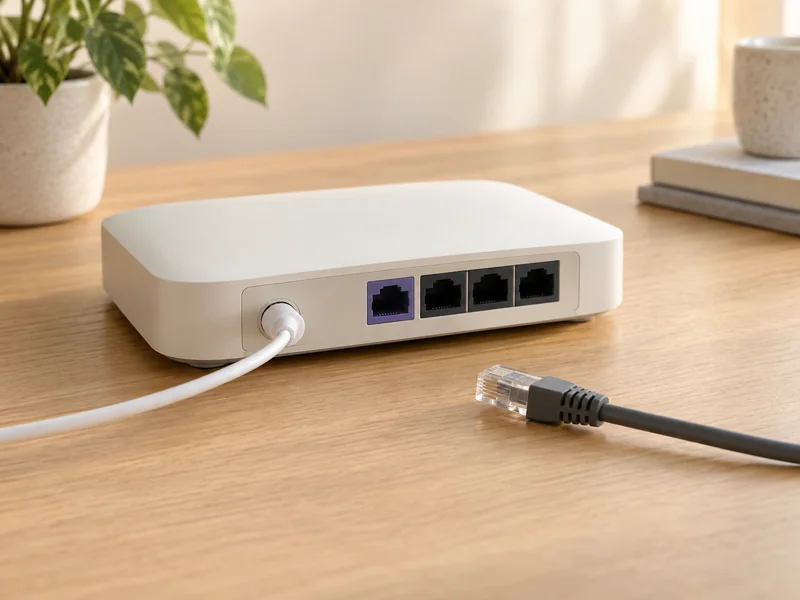 Camera preview (sample)
Live camera
For physical problems — a device, a cable, a label. The agent sees what the customer points the camera at, and nothing more.
A screenshot or file
For supporting detail — an error screenshot, a photo taken earlier, a document worth having in view.
Screen sharing, where supported
For software problems — the workflow itself, shared from devices and browsers that support it.
“Show me the back of the router.”
A fictional setup call: the customer's internet has been down since the router moved. On camera, the agent spots the cable seated in LAN 1, highlights the port labeled Internet in the sample scene, and the customer moves it and watches the light turn green.
Minutes of describing ports over the phone become one look and one clear instruction — for exactly the kind of harmless, physical task where seeing beats explaining.
Each channel carries what it's best at.
| Channel | What it conveys | For example |
|---|---|---|
| Voice | The question, in the customer’s own words | “My internet is down since we moved the router.” |
| Camera | The physical context | The back of the router and its ports. |
| Screen sharing | The software workflow | Where a setting lives, on supported devices. |
| A file | Supporting detail | A photo of the setup card or an error screenshot. |
Questions, answered
No app in this proposed flow — the companion session opens in the browser the customer already has, on phone or computer, from a link.
The browser asks, the customer decides. Nothing is shared before they join the session and grant the request, and the camera state is always visible in the session.
Yes, at any moment, with a control that stays on screen. Ending the session ends all sharing with it.
Camera and file sharing work broadly in modern mobile browsers. Mobile screen sharing depends on the device and browser, so treat it as available where supported rather than guaranteed everywhere.
Explore a more visual support experience.
Watch the phone-to-browser flow in a scripted preview, or talk through how it fits your support line.